How to Connect WhatsApp
WhatsApp connects through Meta's official WhatsApp Business Platform. The connection happens inside a secure Facebook window — we never see your password. Below is every step, even if you don't have a business account yet. On Business we connect it together with you.
Start here: which number will the bot use?
Before anything else, decide which phone number the bot will answer from. There are only two valid answers:
- You already run your business on the WhatsApp Business app. Great — you can connect that number and keep using the app. This is called Coexistence: your business number works in the app and with BotHelper at the same time. See Path A below.
- You don't have a business number yet. Get a separate, clean number for the business — a new SIM or a virtual number that can receive an SMS or a call. See Path B below.
Never use your personal WhatsApp number. A number that is currently registered in the regular (consumer) WhatsApp app cannot be connected — Meta rejects it, and if a connected number is later registered in the consumer app, Meta disconnects it automatically. Your personal chats are not a place for a business bot.
Which numbers work:
| Where the number lives now | Can it be connected? |
|---|---|
| WhatsApp Business app (your business account) | Yes — via Coexistence, and you keep the app |
| Nowhere — a brand-new, unused number | Yes — it becomes a clean business number |
| Regular personal WhatsApp | No |
| Already connected to another platform / provider | No — disconnect it there first |
What you'll need
- A Facebook account (personal, for signing in).
- A Meta Business portfolio — if you don't have one, you'll create it in the first step.
- The phone number you chose above, with the phone in hand.
- For Path A only: the WhatsApp Business app version 2.24.17 or newer, installed on the phone that holds the number. Update the app in the App Store / Google Play before you start.
If you don't have a Meta business account yet
You can create a business portfolio for free in a few minutes:
- Open Meta Business Suite and sign in with your Facebook account.
- Create a new business portfolio: enter your company name, your name, and a work email.
- Confirm the email using the message from Meta.
You don't need to create a WhatsApp Business Account in advance — you can do that during the connection itself.
Step 1. Start the connection
- In the dashboard, open Channels → WhatsApp.
- Click Connect WhatsApp.
A Facebook sign-in window opens. If the button is disabled and you see a message that the connection is currently unavailable, try again later or contact support.
Step 2. Select the business assets
Sign in to Facebook if you aren't already, then pick what you're sharing with BotHelper:
- Business portfolio — select the existing one or create a new one.
- WhatsApp Business account — this is where the two paths split:
- choose Connect a WhatsApp Business App for Path A (you already use the WhatsApp Business app);
- choose your existing WhatsApp Business Account, or create a new one, for Path B.
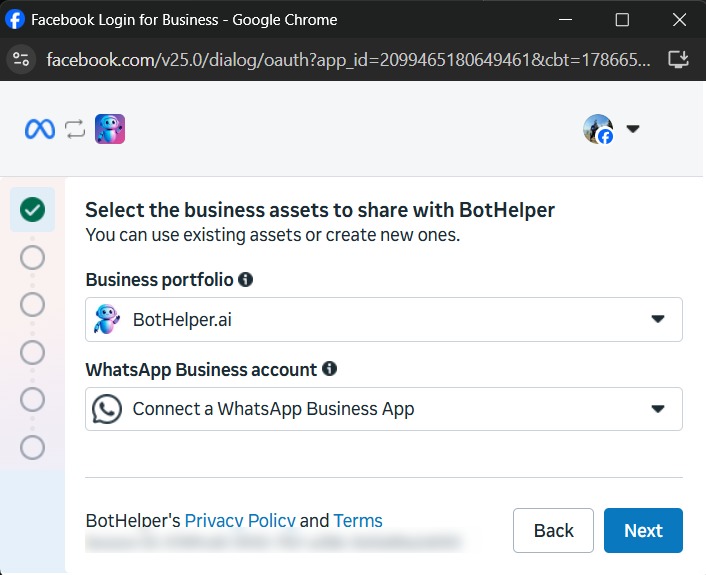
Click Next.
Path A. Connect your existing WhatsApp Business app (Coexistence)
Use this path when the number is already live in the WhatsApp Business app and you want to keep using the app.
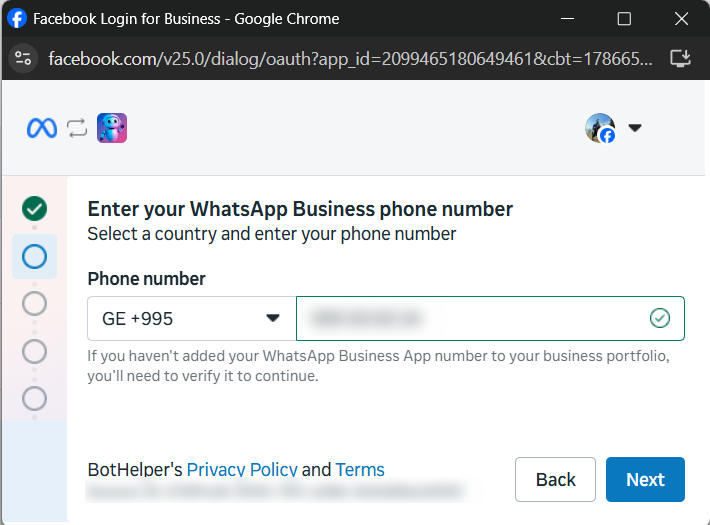
1. Enter the phone number. Select the country code and type the number exactly as it is registered in the WhatsApp Business app.
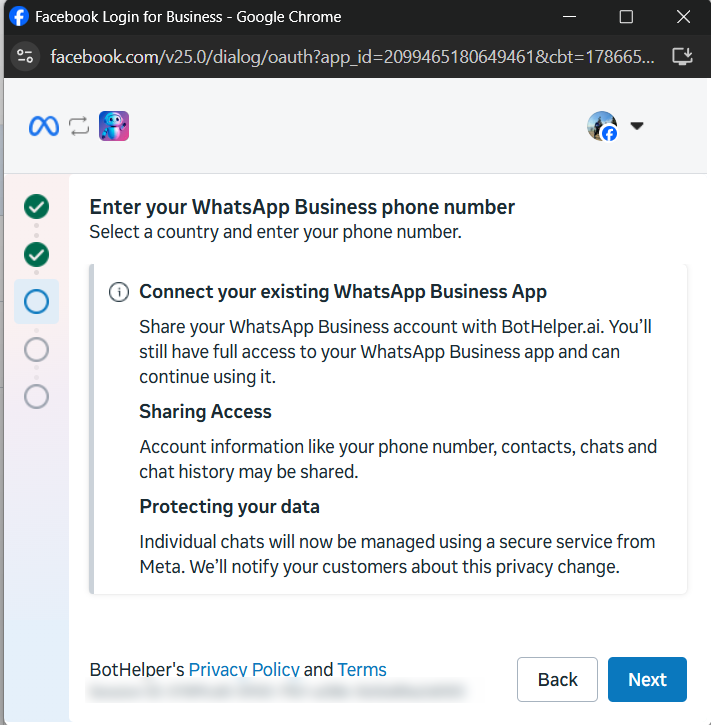
2. Read what gets shared. Meta explains that you keep full access to your WhatsApp Business app, that account information (phone number, contacts, chats and chat history) may be shared, and that individual chats will now be handled through Meta's secure service. Meta itself notifies your customers about this privacy change.
3. Open the QR code in the browser. The browser now shows a QR code you'll scan with your phone. Keep this window open — don't close it and don't switch tabs.
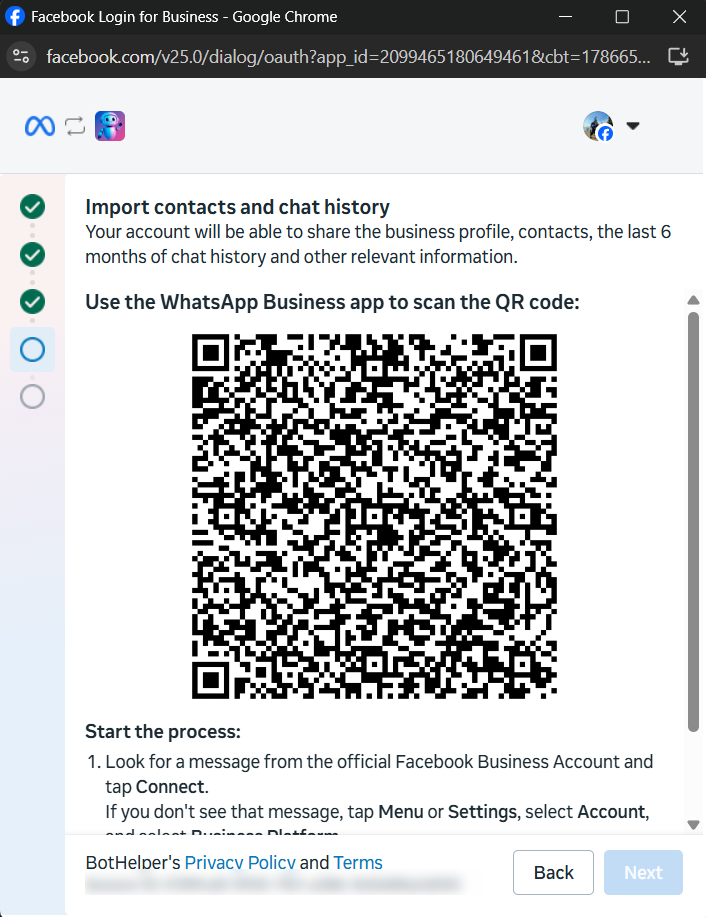
4. Start the connection in the WhatsApp Business app. Pick up the phone that holds the number:
- Open the WhatsApp Business app.
- Look for the message from the official Facebook Business Account and tap Connect. If you don't see it, open Menu or Settings → Account → Business Platform.
- On the Connect to the Business Platform screen, read what the app tells you and tap the button at the bottom.
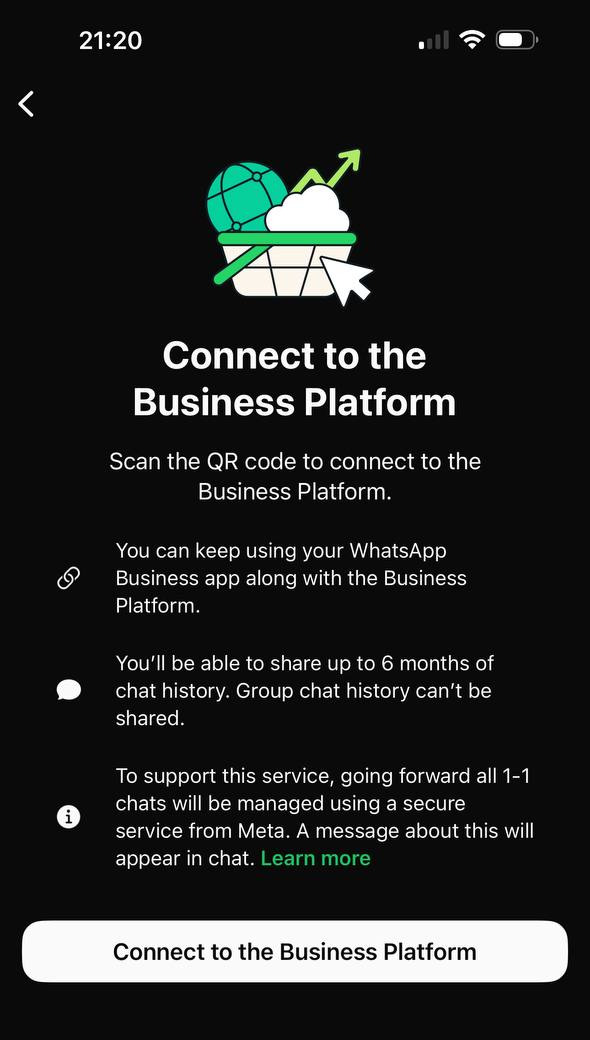
The app repeats the key facts here: you keep using the WhatsApp Business app, you can share up to 6 months of chat history (group chat history is never shared), and from now on one-to-one chats are handled through Meta's secure service — your customers see a message about it in the chat. Sharing the history is optional: decline it and only new messages are handled.
5. Scan the code. Hold the phone up to the computer screen and scan the QR code. Connecting takes up to about 45 seconds — don't close either the app or the browser window while it runs.
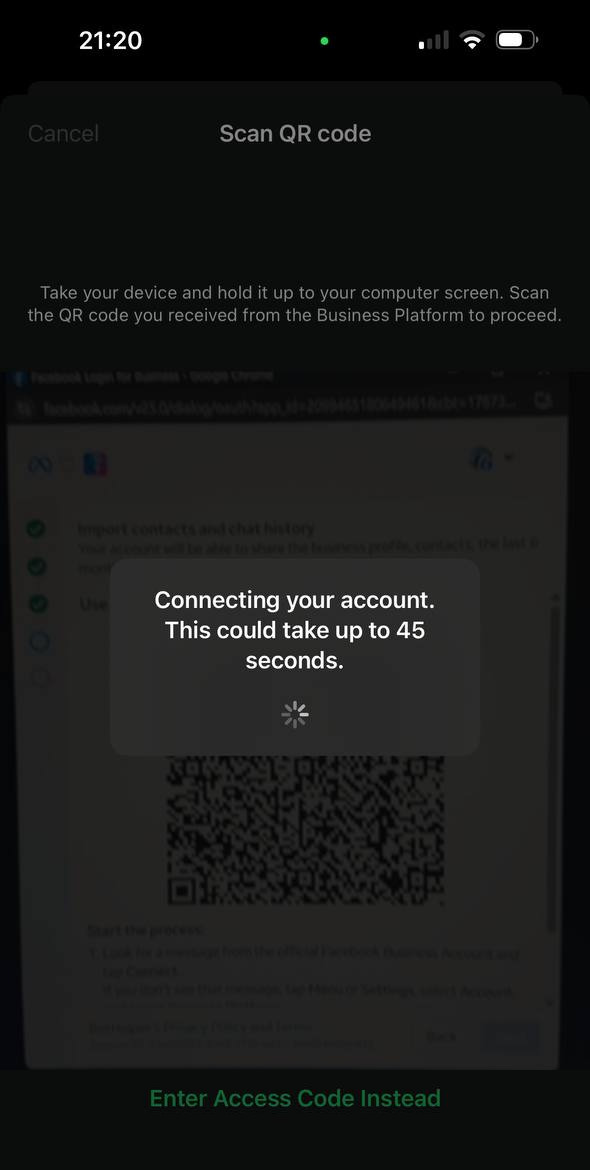
If the camera won't focus or the code won't scan, tap Enter Access Code Instead and type in the code from the browser window.
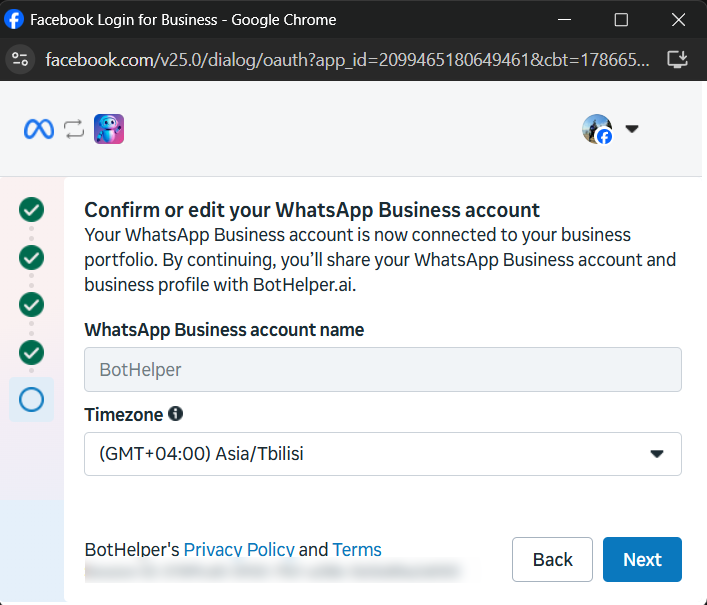
6. Confirm the WhatsApp Business account. Back in the browser: check the account name and pick the correct time zone — it affects the timestamps you see later.
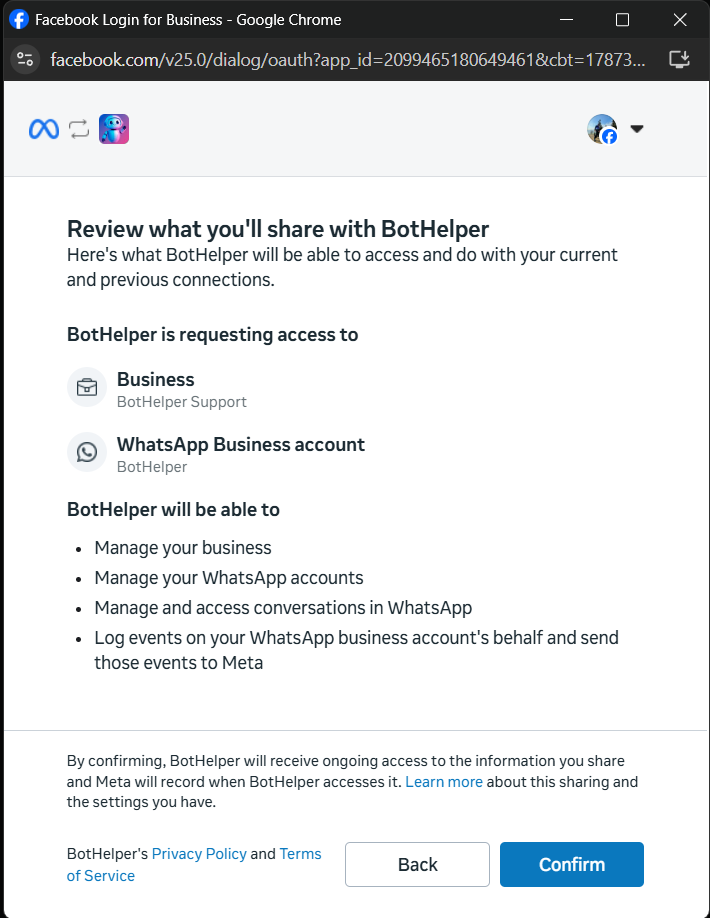
7. Review the access you're granting. Meta lists exactly what BotHelper will be able to do: manage your business and WhatsApp accounts, and access conversations in WhatsApp. Read it and click Confirm.
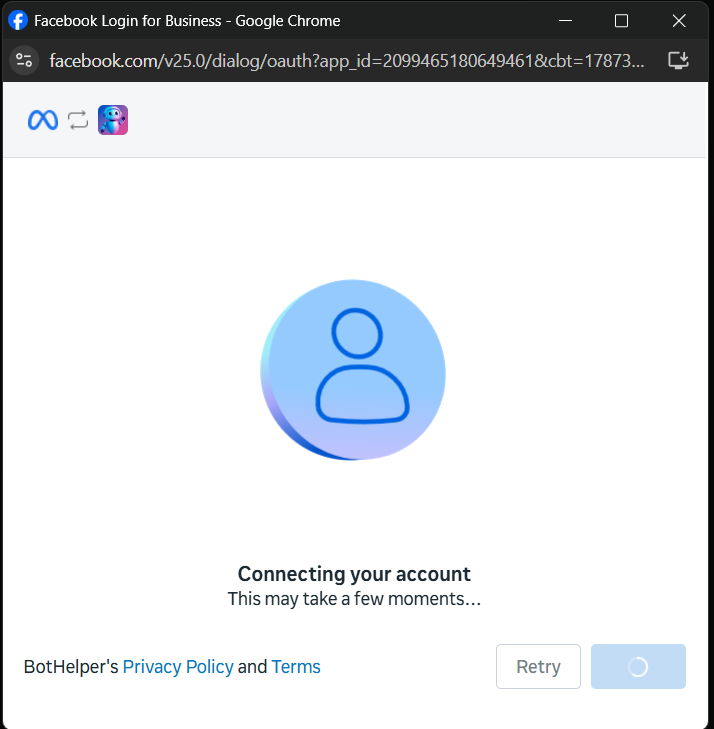
8. Wait for the connection. The window shows "Connecting your account" — this takes a few moments. If it stalls, use the Retry button on that same screen.
9. Done. The final screen confirms the account is connected. Meta also notes that it will review your business for compliance with WhatsApp's Commerce Policy and will get in touch within 24 hours if something is wrong.
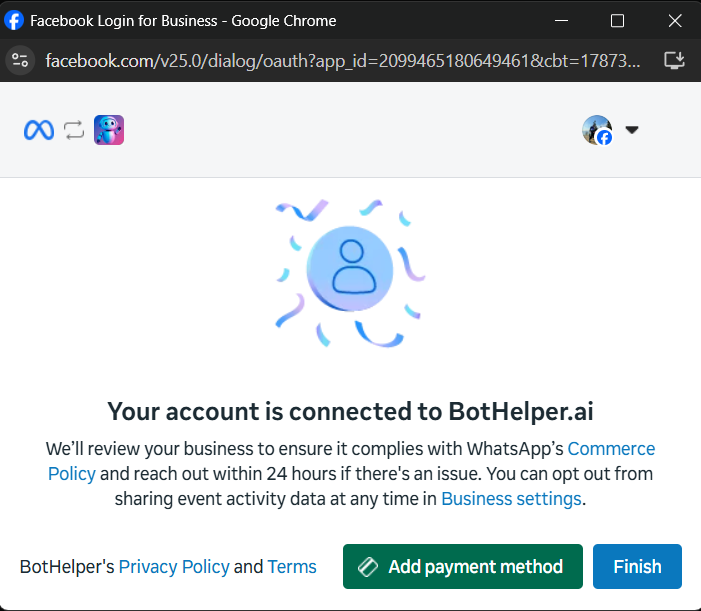
Click Finish. Meta also offers Add payment method here — that's Meta's own billing for WhatsApp conversations, separate from BotHelper, and you can add it later in Meta Business settings.
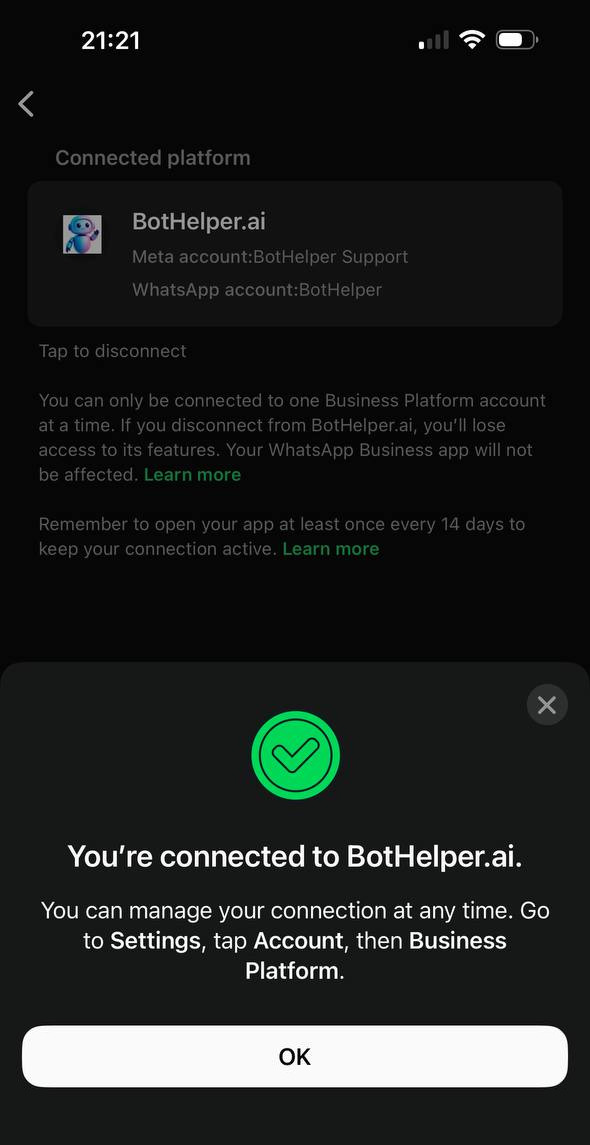
Your phone shows the same result: the WhatsApp Business app now lists BotHelper.ai as the connected platform.
Path B. Connect a new business number
Use this path when the number is brand new and isn't registered in any WhatsApp app.
- In Step 2, select your WhatsApp Business Account or create a new one.
- Enter the phone number and fill in the business profile details Meta asks for.
- Verify the number with a code from SMS or a call. If the SMS doesn't arrive, choose verification by call.
- Finish the remaining steps in the Meta window.
There's no QR code and no app on this path — the number lives entirely on the WhatsApp Business Platform.
Step 3. Finish in the dashboard
When the Meta window closes, the number appears in the dashboard's list of connected WhatsApp numbers and you'll see a success notification. Then:
- Make sure the toggle is set to Active.
- If a "no prompt" warning appears, follow the Configure prompt link and assign one. How to upload documents and create a prompt is covered in the documents guide and the prompt guide.
What changes after Coexistence
This section applies to Path A only. After connecting, your number works in two places at once, and a few WhatsApp features change. These are Meta's rules, not ours:
Keeps working in the WhatsApp Business app
- Individual chats — you can still read and reply from the app, and messages are mirrored between the app and the platform.
- Your contacts and chat history stay on your phone.
- Group chats, voice and video calls, catalogue, channels and the app's marketing tools — these stay app-only and are not available through the platform.
Stops working or becomes limited
- Disappearing messages, view-once messages and live location sharing are turned off for this number.
- Broadcast lists become read-only.
Keeping the connection alive
- Open the WhatsApp Business app at least once every 14 days. If the app goes untouched for longer, Meta drops the connection and the bot stops receiving messages. This is the single most common way a working Coexistence setup breaks.
- A number can be connected to one Business Platform account at a time. To move it elsewhere, disconnect it first.
- You can disconnect at any time from the app: Settings → Account → Business Platform. You lose the bot, but your WhatsApp Business app itself is unaffected.
Good to know before you decide
- Your customers are notified by Meta that individual chats are now handled through a business service.
- The bot answers new customer messages automatically. You'll see those same chats in your WhatsApp Business app, so agree in advance who replies — the bot or you — to avoid answering twice.
- The chat history imported by Meta is not shown in the BotHelper dashboard: the conversation thread there starts from the first new message after connecting. Messages you send yourself from the WhatsApp Business app do appear in the dashboard thread, and the assistant goes quiet in that chat for an hour. Each new reply of yours extends the pause.
Good to know
- For now, one WhatsApp number per account can be connected.
- The bot can reply freely within 24 hours of the customer's last message. To write to a customer later than that, WhatsApp requires a pre-approved message template and the customer's consent — these are WhatsApp's own rules.
Common questions
- The "Connect WhatsApp" button is disabled. The connection is temporarily unavailable — try again later or contact support.
- The number isn't accepted. Make sure it isn't registered in the regular (personal) WhatsApp app. Either remove it from that app first, or use a different number.
- I don't see "Connect a WhatsApp Business App" in the list. That option only appears for numbers eligible for Coexistence. Check that the WhatsApp Business app is updated to version 2.24.17 or newer and that the number is active in it.
- The QR code won't scan / there's no message from Facebook in the app. In the WhatsApp Business app, open Menu or Settings → Account → Business Platform and start the connection from there. If the camera won't read the code, tap Enter Access Code Instead and type the code from the browser.
- The verification code didn't arrive. Try choosing verification by call instead of SMS in the Meta window.
- Can I keep using the WhatsApp Business app? Yes, on Path A — that's the whole point of Coexistence.
What's next
Upload your business documents and generate a prompt — see the documents guide and the prompt guide. After that, the bot will start answering your customers on WhatsApp.